
AutoPilot guide
Configure your cadence, source titles from categories, schedule publishing, and avoid duplicates. Set it once, walk away.
How AutoPilot works
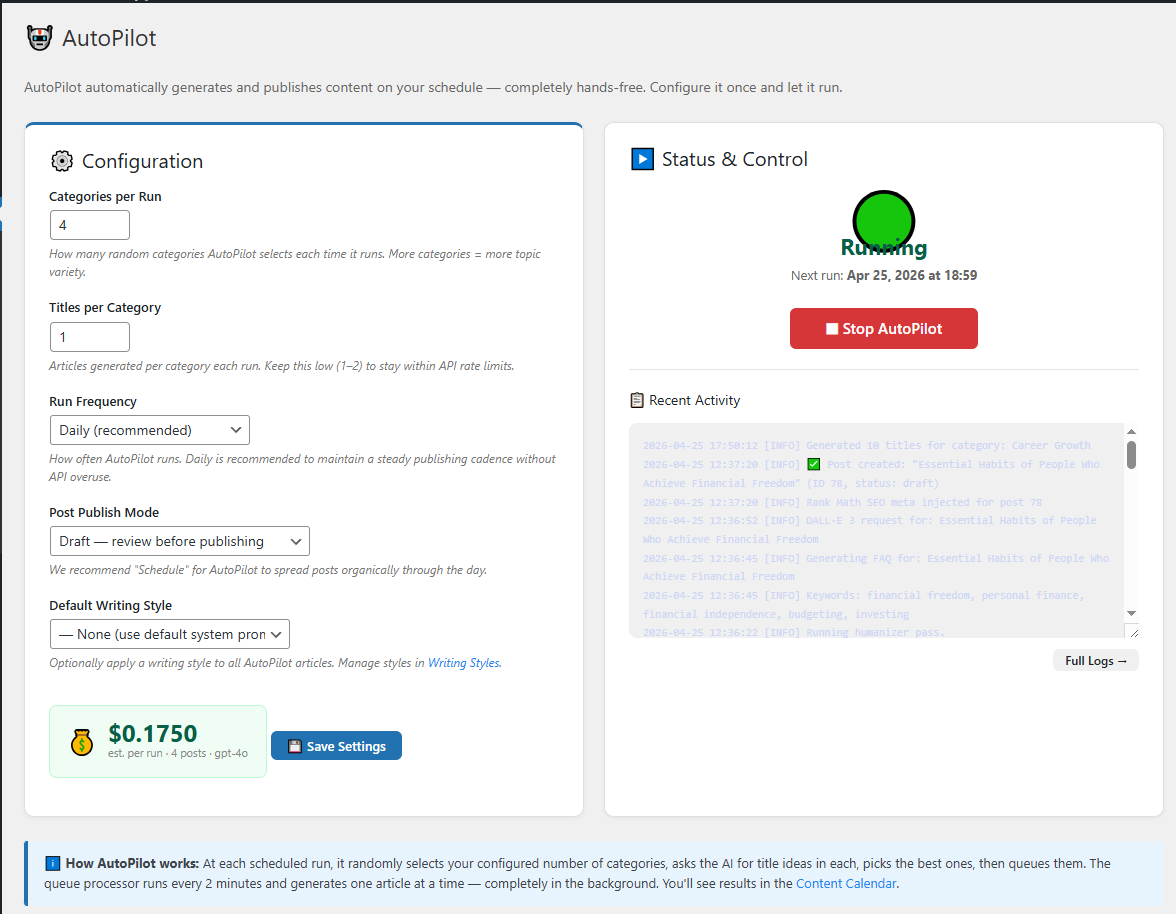
Once enabled, AutoPilot ticks every 2 minutes via WP-Cron. On each tick, it: (1) checks whether enough time has passed since the last article, (2) picks a source category, (3) asks GPT to suggest a title that hasn’t been used before, (4) queues an article job, (5) the queue worker picks it up and runs the full generation pipeline (outline → expand → humanize → image → SEO → publish).
Step 1 — Pick your cadence
Open MrNiche Autoblogger Pro → AutoPilot → Schedule. Pick how many articles per day (or week). Common patterns:
- 1–2 / day — best for most blogs. Steady growth, never spammy-looking.
- 4–6 / day — content-heavy niches (recipes, news roundups, product reviews).
- 10+ / day — programmatic SEO plays. Make sure your hosting can handle it.
Step 2 — Pick source categories
AutoPilot pulls topic ideas from the categories you select. Each category becomes a “topic seed” — GPT generates titles that fit the category’s name and existing post titles. Keep categories tightly themed: a category called “Personal Finance” produces better titles than “Stuff About Money”.
Step 3 — Choose publish mode
Three options under AutoPilot → Publishing:
- Publish immediately — articles go live as soon as generation finishes.
- Save as draft — articles wait in Posts → Drafts for your review. Best for niches where you want a human eye before publish.
- Schedule publish — drip-publish queued articles at a fixed interval (e.g. one every 3 hours) regardless of generation time.
Avoiding duplicate titles
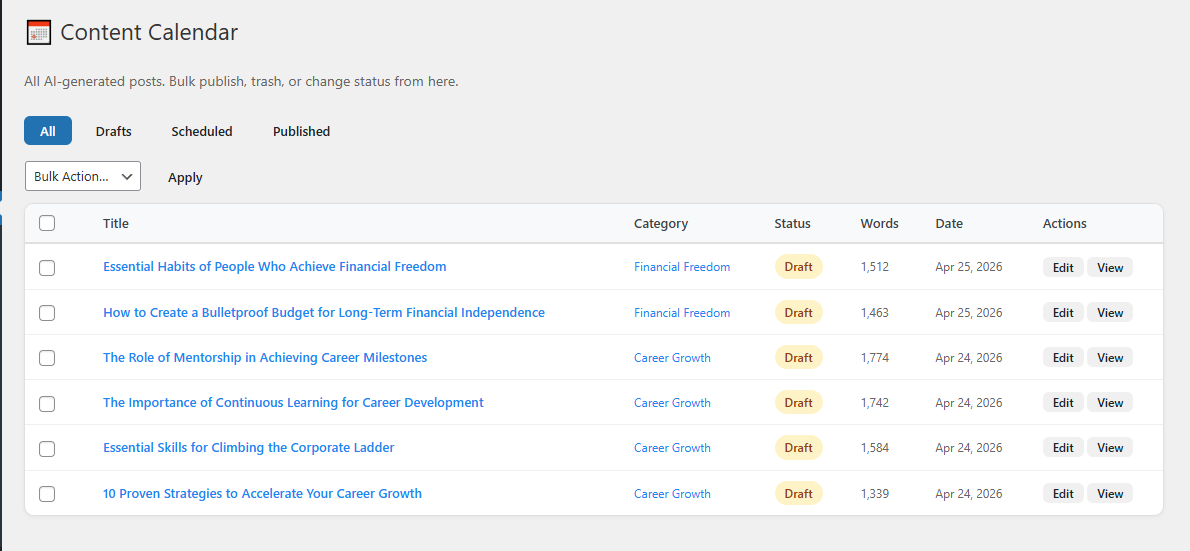
MrNiche Autoblogger sends GPT a list of your last 50 post titles in each category before asking for a new suggestion, with explicit instructions to avoid overlap. In practice, exact duplicates almost never happen. If you notice near-duplicates (same topic, different phrasing), tighten your category boundaries or add a “Do not write about: X, Y, Z” line to the category’s writing style profile.
Pause / resume / kill switch
The AutoPilot Status toggle on the Dashboard is the kill switch. Off = no new jobs queued; in-flight jobs finish then nothing else starts. Use this before site migrations, theme switches, or when you’re tweaking style profiles.
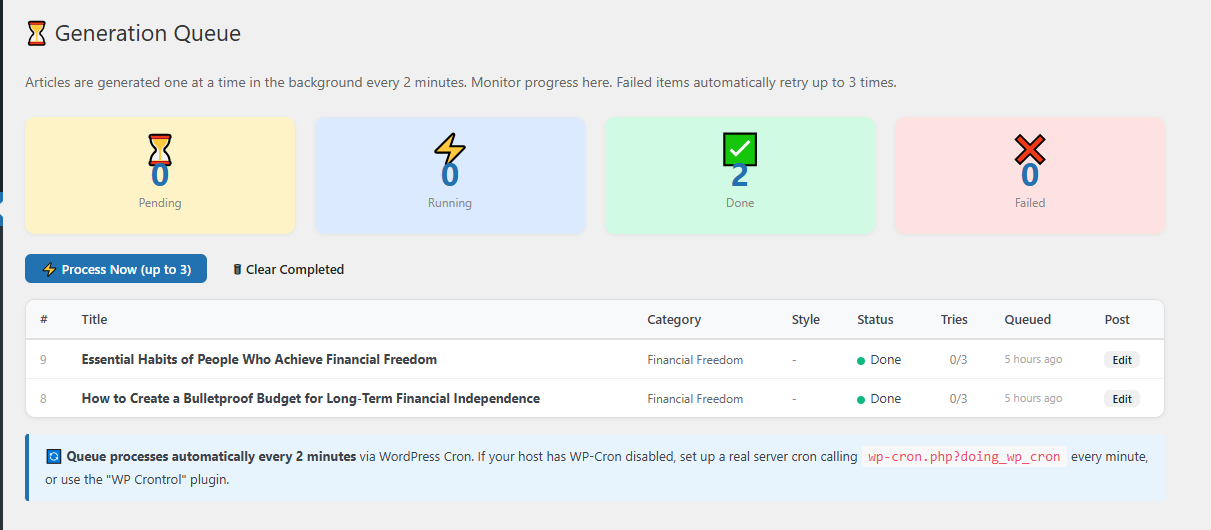
⚠ WP-Cron required. AutoPilot relies on WP-Cron firing every 2 minutes. If your host has disabled WP-Cron (e.g. WP Engine), set up a real system cron: */2 * * * * curl https://yoursite.com/wp-cron.php?doing_wp_cron. See Troubleshooting if AutoPilot seems stuck.
Per-category Writing Styles
AutoPilot can write each category in its own voice. Open the category → style mapping table on the AutoPilot page and assign any saved Writing Style per category; categories without a mapping use your global default. A tech-tutorials category can sound like a senior engineer while your buying-guides category sounds like a friendly reviewer — same site, same run.
Drip publishing — Scheduled Posts Per Day
In Prompt Studio → Post Settings → Scheduled Posts Per Day, cap how many scheduled articles may land on any single day. Every newly generated article in Schedule mode takes the first upcoming day with a free slot, so a 50-title batch spreads itself over weeks automatically instead of publishing in one burst. A steady cadence reads more naturally to search engines — and to your readers. Set 0 to keep the old everything-tomorrow behavior.
The Quality Gate
With the Quality Gate enabled (Prompt Studio), an article that comes out suspiciously short, missing headings, or structurally broken is saved as a draft instead of auto-publishing — nothing is lost, it just waits for your review in the Content Calendar. Clearly-short drafts also get one automatic retry during generation, keeping the better result.
Next steps
AutoPilot misbehaving?
Send us your queue logs (MrNiche Autoblogger → Logs) and we’ll find the issue.